


For compatibility with KidminApp Printer version 2.0.0 and above, your Brother label printer must be recognized as a printer by Windows and not simply a USB device. If you have installed the Kidmin Printer app before 2.0.0, printing utilized USB drivers to communicate with the printer. With the 2.0.0 update, we now interface more reliably with the device as a printer, no longer needing to install special USB drivers (via Zadig).
These steps may not be necessary for new installs. However,
To ensure your Brother printer is recognized by Windows as a printer for compatibility with KidminApp Printer 2.0.0, please follow the steps below.
Note: Kidmin Printer has been renamed to KidminApp Printer for versions 2.0.0 and above. Versions before 2.0.0 utilize a white icon, while new versions have a purple icon.
Prepare your Computer
- Exit/Quit any current installations of Kidmin Printer app. After following these steps and confirming printing capability, this app may be uninstalled.
- Install the correct Brother Printer drivers for your computer. You can search for your device and download the drivers from Brother here: https://support.brother.com/g/b/countrytop.aspx?c=us&lang=en
Ensure device is registered as a printer
- Unplug the Device from your computer
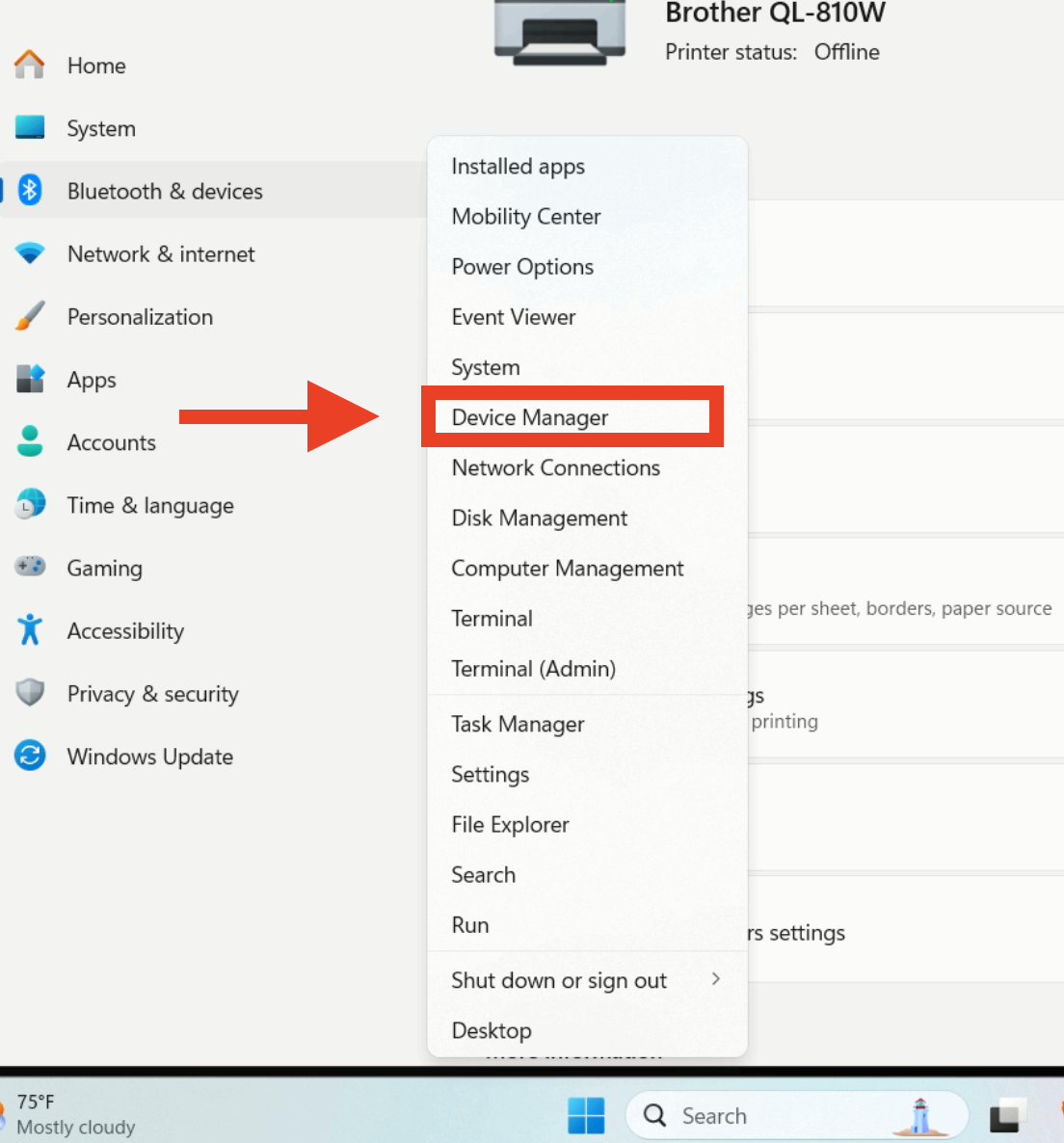
- Open Device Manager (Right click Start Button > Device Manager)
- Look under Printers, USB Devices, and possibly libusbk Devices, and find the device (QL-XXX)
- Right Click -> Uninstall Device
- Plug it back in and allow Windows to install the device. After install, see where it lands in the categories we listed in step 4. We want it to show up under Printers.
- If it is not under Printers, Right Click on the Device Name > Update Driver > Browse my Computer for Drivers > Let Me Pick.
- In the next window, you'll see a list. While many options may be shown, the correct option to choose is USB Printing Support. Confirm the selection.
After taking these steps, you should now be able to see the device under Printers in Windows (Settings > Bluetooth & Devices > Printers & scanners).
Ensure printer is using Brother drivers
Finally, after taking the steps above to register the device as a printer, confirm that the printer is using Brother's drivers to print.
- Open Settings > Bluetooth & Devices > Printers & scanners
- Click on the name of your device (i.e. Brother QL-8XX)
- Click Printer Properties
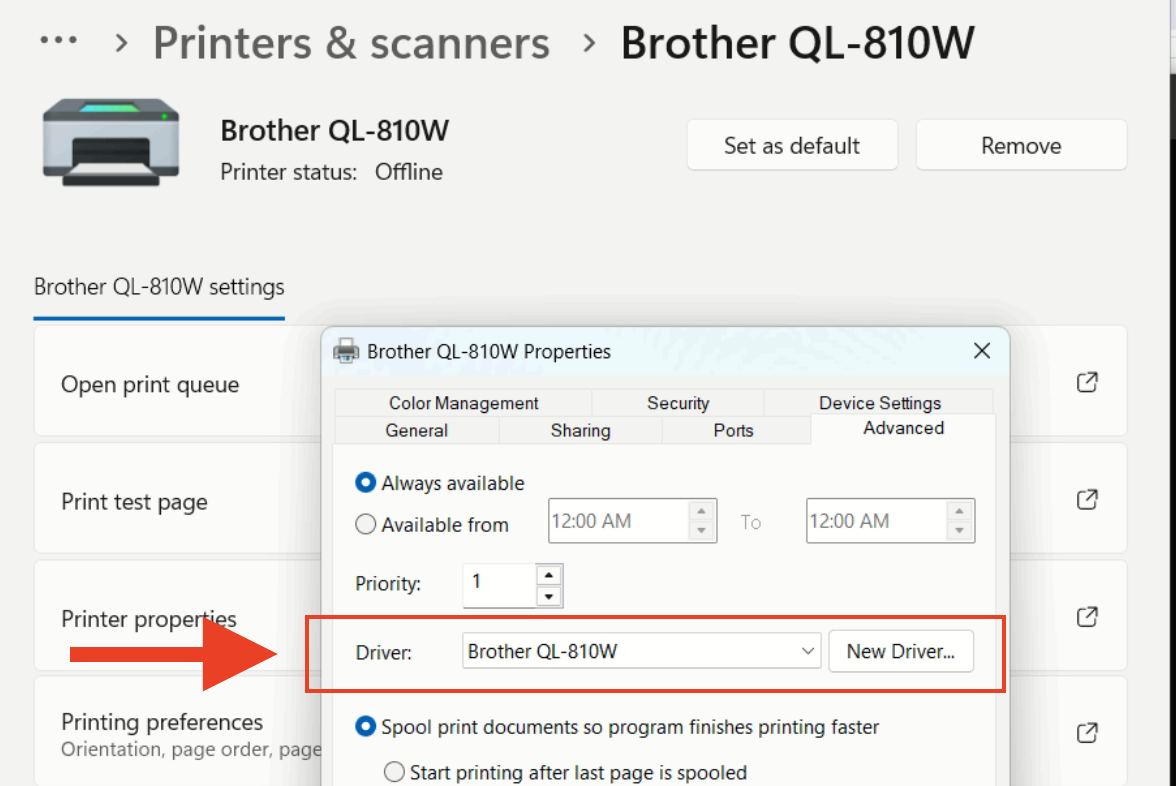
- Click the Advanced tab
- Under the Advanced tab, the Driver drop-down should have Brother QL-8xx matching your device name).
Install KidminApp Printer 2.0.0+ and Test Printing
After taking the steps to ensure Windows recognizes the Brother printer as a printer and it has the correct driver, proceed with installing the latest version of KidminApp Printer for Windows. Once installed, login, name your printer, and perform a test print. A successful test print from the program means you're ready to go for printing tags for your next service.
After confirming printing with the new KidminApp Printer app (purple icon), you may uninstall the old Kidmin Printer app (white icon).
Need help? Reach out we will be happy to make sure your questions are answered: help@kidminapp.com